Implementing Google Login in Expo React Native: Handling Expo Go Limitations
Adding Google Sign-In to a React Native app is a common requirement.
In this guide, we use the @react-native-google-signin/google-signin library to implement Google authentication. Since this library relies on native modules, it works seamlessly in APK builds and production, but does not work in Expo Go, as Expo Go doesn’t include these native dependencies.
To handle this limitation gracefully, we’ll structure our code so that Google Sign-In works in development builds and APKs, while hiding the Google Sign-In button during local development in Expo Go. This avoids runtime errors during development while keeping authentication fully functional in real builds.
The Challenge: Expo Go Limitations
Expo Go is a convenient way to test your app during development, but it has limitations when it comes to native modules. The @react-native-google-signin/google-signin library requires native code that isn't available in Expo Go, which means:
- Expo Go: Google Sign-In won't work
- Development Build: Google Sign-In works perfectly
- Production Build: Google Sign-In works perfectly
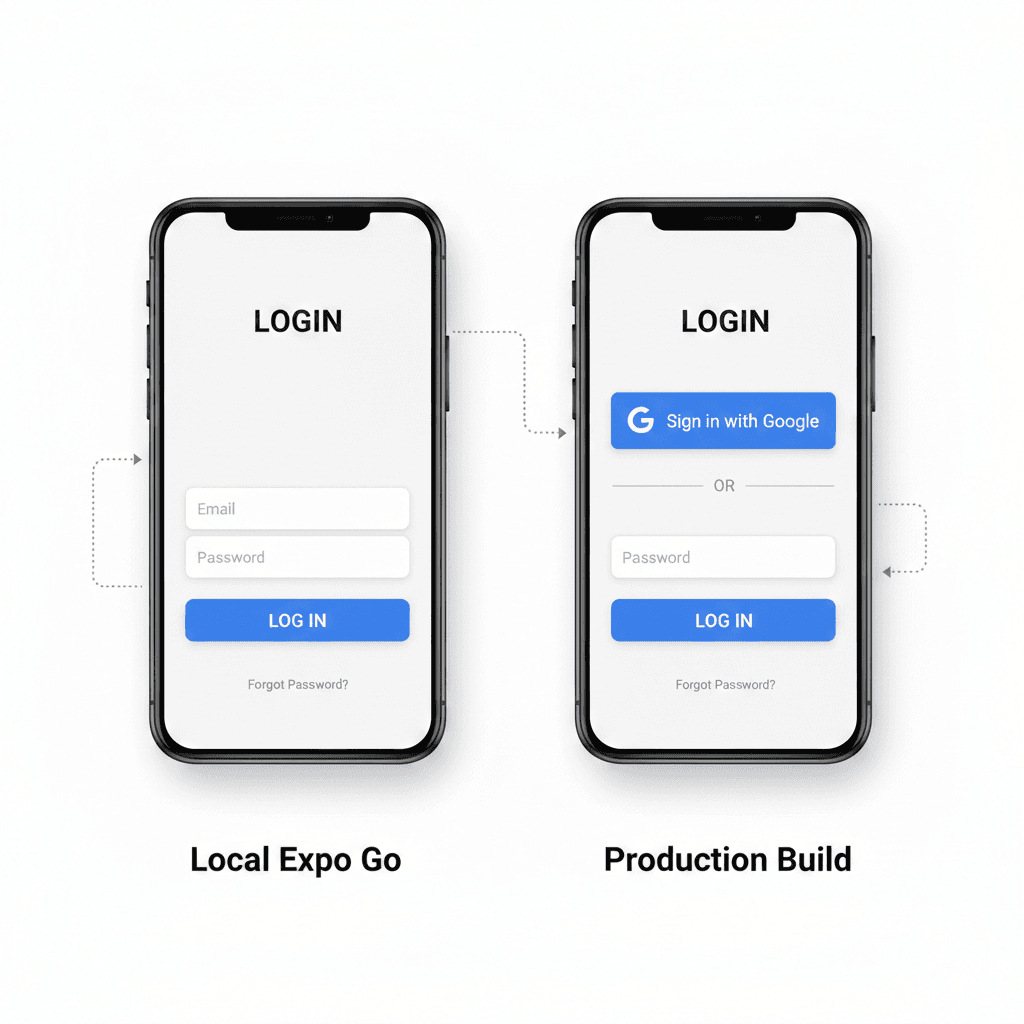
The Solution: Conditional Authentication
The best approach is to implement a dual authentication strategy:
- Email/Password Auth → Available in Expo Go for local development
- Google Login → Available in Development Build and Production Build
This way, developers can still test the app in Expo Go using email/password authentication, while Google Sign-In is available in preview and production builds.
Prerequisites
Before we begin, make sure you have:
- An Expo React Native project set up
- Google OAuth credentials configured in the Google Cloud Console
- The
@react-native-google-signin/google-signinpackage installed
Step 1: Install Dependencies
First, install the required package:
1npm install @react-native-google-signin/google-signin
Step 2: Configure app.json
Add the Google Sign-In plugin to your app.json:
1{2 "expo": {3 "plugins": ["@react-native-google-signin/google-signin"]4 }5}
After adding the plugin, you'll need to rebuild your app (development build or production build) for the native changes to take effect.
Step 3: Environment Variables
Set up the following environment variables in your .env file:
1EXPO_PUBLIC_GOOGLE_CLIENT_ID_WEB=your-web-client-id2EXPO_PUBLIC_GOOGLE_CLIENT_ID_IOS=your-ios-client-id3EXPO_PUBLIC_GOOGLE_CLIENT_ID_ANDROID=your-android-client-id
These client IDs come from your Google Cloud Console OAuth 2.0 credentials. Make sure to configure separate OAuth clients for web, iOS, and Android platforms.
Android Client ID Setup:
When creating an Android client ID in Google Cloud Console, it will ask for a SHA1 fingerprint. You can get this by running:
1eas credentials
Then select "preview" to get the SHA1 fingerprint for your development/preview builds.
Production Android Client ID:
For production releases, create another Android client ID in Google Cloud Console and add the SHA1 fingerprint by selecting "production" in eas credentials. You do not need to add this production Android client ID to your .env or app config.
Step 4: Configure Google Sign-In in Your Login Screen
In your login component, we need to conditionally configure Google Sign-In only when not running in Expo Go. We'll use Constants.appOwnership to detect the environment.
1// login.jsx2import { useEffect, useState } from "react"3import { TouchableOpacity, Text } from "react-native"4import Constants from "expo-constants"5import { AntDesign } from "@expo/vector-icons"6import { useRouter } from "expo-router"7import { toast } from "react-native-toast-message"8import { googleLogin } from "../utils/auth"910export default function LoginScreen() {11 const [loading, setLoading] = useState(false)12 const router = useRouter()1314 // Configure Google Signin only when not in Expo Go15 useEffect(() => {16 const isExpoGo = Constants.appOwnership === "expo"1718 if (!isExpoGo) {19 try {20 const {21 GoogleSignin,22 } = require("@react-native-google-signin/google-signin")23 GoogleSignin.configure({24 webClientId: process.env.EXPO_PUBLIC_GOOGLE_CLIENT_ID_WEB,25 iosClientId: process.env.EXPO_PUBLIC_GOOGLE_CLIENT_ID_IOS,26 androidClientId: process.env.EXPO_PUBLIC_GOOGLE_CLIENT_ID_ANDROID,27 })28 } catch (e) {29 console.warn("Google Signin configure failed (likely in Expo Go):", e)30 }31 }32 }, [])3334 const handleGoogleLogin = async () => {35 const isExpoGo = Constants.appOwnership === "expo"3637 if (isExpoGo) {38 toast.info("Google Login is not available in Expo Go")39 return40 }4142 setLoading(true)43 try {44 const result = await googleLogin()45 if (result.success) {46 router.replace("/(tabs)")47 } else {48 toast.error(result.error || "Google login failed")49 }50 } catch (error) {51 toast.error(error.message || "Something went wrong")52 } finally {53 setLoading(false)54 }55 }5657 const isExpoGo = Constants.appOwnership === "expo"5859 return (60 <View>61 {/* Email/Password login form */}62 {/* ... your email/password form here ... */}6364 {/* Conditionally render Google login button */}65 {!isExpoGo && (66 <TouchableOpacity67 className="mb-6 flex-row items-center justify-center space-x-3 rounded-lg bg-white py-4"68 onPress={handleGoogleLogin}69 disabled={loading}70 >71 <AntDesign name="google" size={24} color="black" />72 <Text className="font-nunito-bold ml-2 text-base text-black">73 Continue with Google74 </Text>75 </TouchableOpacity>76 )}77 </View>78 )79}
Key Points:
- We check
Constants.appOwnership === 'expo'to detect Expo Go - Google Sign-In is only configured when not in Expo Go
- The Google login button is conditionally rendered based on the environment
- We show a helpful toast message if someone tries to use Google login in Expo Go
Step 5: Implement the Google Login Function
Create a utility function or add it to your auth context that handles the actual Google Sign-In flow:
1// AuthContext.jsx2import { GoogleSignin } from "@react-native-google-signin/google-signin"3import mobileApiClient from "../utils/api"45export const googleLogin = async () => {6 try {7 setError(null)89 // Import here to avoid issues if module is not linked10 const {11 GoogleSignin,12 } = require("@react-native-google-signin/google-signin")1314 // Check if Google Play Services are available (Android)15 await GoogleSignin.hasPlayServices()1617 // Sign in with Google18 const userInfo = await GoogleSignin.signIn()1920 // Get the idToken for backend authentication21 const { idToken } = await GoogleSignin.getTokens()2223 if (!idToken) {24 throw new Error("Could not get ID token from Google")25 }2627 // Send idToken to your backend for verification28 const { user, token } = await mobileApiClient.googleLogin(idToken)29 setUser(user)3031 // Load additional user data (non-blocking)32 loadHabits().catch(() => {33 // Don't block login on habit loading failure34 })3536 // Schedule notifications if enabled (non-blocking)37 const { notificationsEnabled } = useSettingsStore.getState()38 if (notificationsEnabled) {39 ensureDailyReminderScheduled(20, 0).catch(() => {40 // Ignore scheduling errors here41 })42 }4344 return { success: true }45 } catch (error) {46 console.error("Google Login Error:", error)47 let errorMessage = error.message4849 // Handle native module errors typically thrown by GoogleSignin50 if (error.code) {51 const {52 statusCodes,53 } = require("@react-native-google-signin/google-signin")5455 if (error.code === statusCodes.SIGN_IN_CANCELLED) {56 errorMessage = "Sign in cancelled"57 } else if (error.code === statusCodes.IN_PROGRESS) {58 errorMessage = "Sign in is already in progress"59 } else if (error.code === statusCodes.PLAY_SERVICES_NOT_AVAILABLE) {60 errorMessage = "Play services not available"61 }62 }6364 setError(errorMessage)65 return { success: false, error: errorMessage }66 }67}
Error Handling:
The code handles common Google Sign-In error scenarios:
- SIGN_IN_CANCELLED: User cancelled the sign-in flow
- IN_PROGRESS: A sign-in operation is already in progress
- PLAY_SERVICES_NOT_AVAILABLE: Google Play Services are not available (Android)
Step 6: Backend API Integration
Your backend should have an endpoint that accepts the Google ID token and verifies it. Here's an example API client method:
1// utils/api.js2class ApiClient {3 async googleLogin(idToken) {4 const data = await this.request("/auth/google", {5 method: "POST",6 body: JSON.stringify({ token: idToken }),7 })89 if (data.token) {10 await this.setToken(data.token)11 }1213 return data14 }15}1617const mobileApiClient = new ApiClient()1819export default mobileApiClient
Backend Verification:
Your backend should:
- Verify the ID token with Google's token verification endpoint
- Extract user information from the verified token
- Create or update the user in your database
- Return a JWT token for your app to use in subsequent requests
Best Practices
-
Graceful Degradation: Always provide an alternative authentication method (email/password) that works in Expo Go
-
Error Handling: Implement comprehensive error handling for all Google Sign-In scenarios, including network errors and user cancellations
-
Loading States: Show appropriate loading indicators during the authentication process
-
Token Management: Securely store the authentication token returned from your backend
-
User Feedback: Provide clear feedback to users about what's happening and why Google Sign-In might not be available in certain environments
Testing Strategy
- Expo Go: Test email/password authentication
- Development Build: Test both email/password and Google Sign-In
- Production Build: Verify Google Sign-In works correctly before release
Common Issues and Solutions
Issue: Google Sign-In button doesn't appear in Expo Go
- Solution: This is expected behavior. The button is intentionally hidden in Expo Go.
Issue: "Google Signin configure failed" warning
- Solution: This is normal in Expo Go. The warning can be safely ignored.
Issue: Play Services not available (Android)
- Solution: Ensure Google Play Services are installed and up to date on the test device.
Issue: Sign-in cancelled error
- Solution: This is user-initiated. Handle gracefully without showing an error.
Conclusion
Implementing Google Sign-In in Expo React Native requires careful handling of Expo Go limitations. By conditionally configuring and rendering the Google Sign-In feature based on the app environment, you can create a seamless authentication experience that works across all build types.
The key takeaways:
- Use
Constants.appOwnershipto detect the environment - Conditionally configure Google Sign-In only when needed
- Hide the Google login button in Expo Go
- Provide alternative authentication methods for development
- Implement robust error handling for all scenarios
With this approach, your authentication system will work smoothly whether developers are using Expo Go for quick testing or development builds for full feature testing.